Hide the Bluetooth icon from the Mac menu bar safely
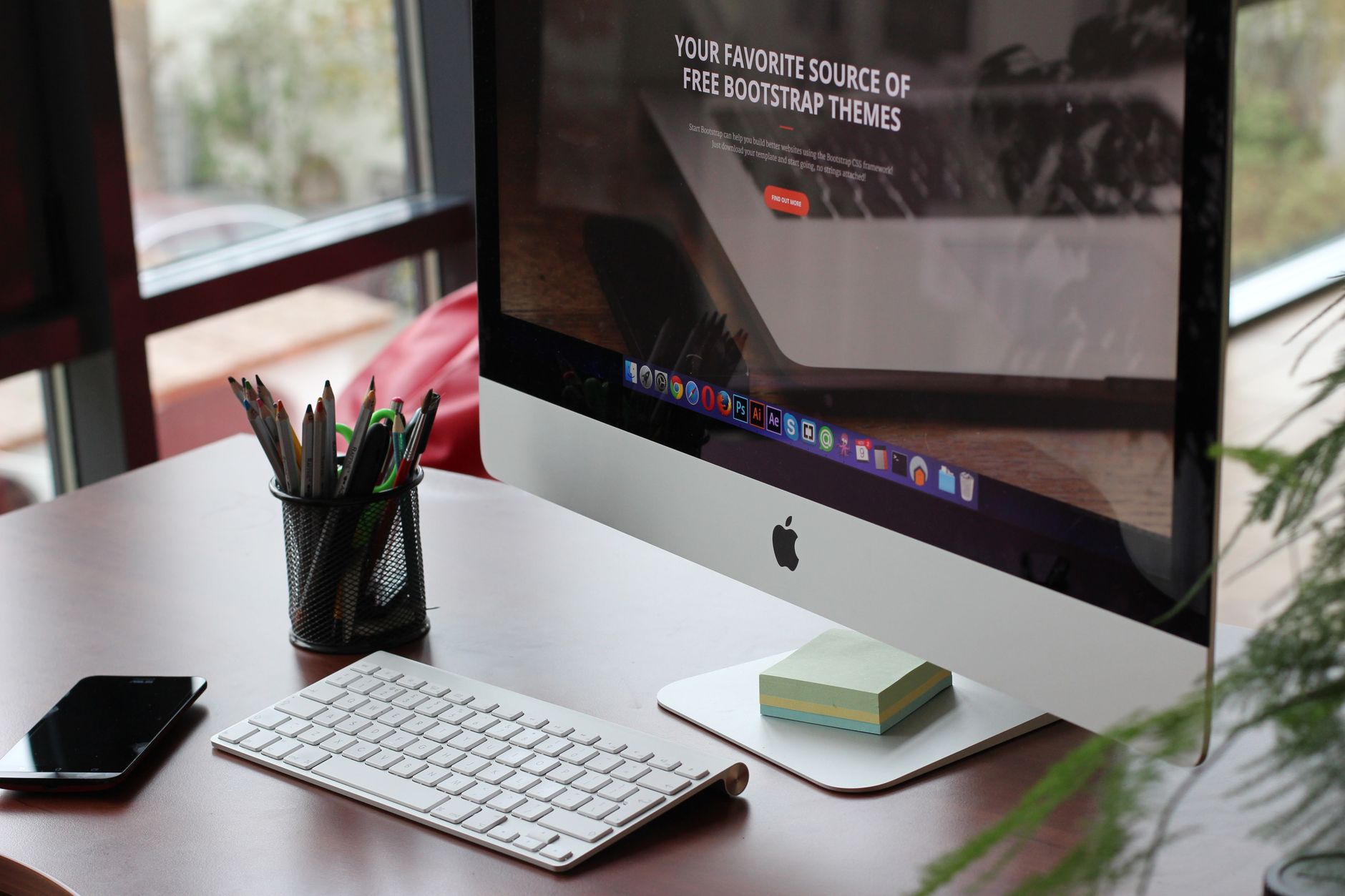
The Bluetooth icon is one of the easiest items to remove from a Mac menu bar and one of the easiest to remove for the wrong reason. Hiding the icon and turning Bluetooth off are two different settings that sit close together, and confusing them on a desktop Mac with a wireless keyboard leaves you with no way to undo the change.
The setting itself takes about ten seconds once you know where Apple moved it. What deserves more thought is whether the Bluetooth item is doing work for you that you have stopped noticing, and where that work goes once the icon is gone.
What the Bluetooth item actually does
Clicking the Bluetooth icon opens a list of paired devices with their connection state, and each entry can be connected or disconnected from that list. For supported accessories, the same list shows a battery level next to the device name. Anyone running wireless earbuds, a mouse, a keyboard, and a trackpad at the same time is probably using that battery readout more than they realise.
There is a second behaviour that almost nobody discovers by accident. Hold Option and click the icon, and the menu expands to show diagnostic detail, including the Mac's own Bluetooth address and more information about connected devices. It is a troubleshooting tool rather than a daily one, but it disappears along with the icon.
The icon also carries a small amount of state on its own. Its appearance changes when Bluetooth is switched off entirely, which is occasionally the fastest way to explain why a keyboard has stopped responding. That signal is worth something on a machine where several people or several devices share the hardware, and worth nothing on a laptop that is only ever paired with one set of earbuds.
If none of that matters to you, the item is occupying width for no return. Earbud battery can be checked elsewhere, connecting or disconnecting a device is available in Control Center, and the state of the radio is visible in the same place. The decision comes down to how often you switch devices during a normal day, and whether the icon is a control you use or a light you have stopped reading.
Where the setting is, by macOS version
Apple relocated this control twice, so instructions written a few years ago will not match the screen in front of you. Check the version first from the Apple menu, under About This Mac.
| macOS version | Where to go | What to do |
|---|---|---|
| macOS 13 Ventura and later | System Settings, then Control Center | Set Bluetooth to Don't Show in Menu Bar |
| macOS 11 Big Sur and macOS 12 Monterey | System Preferences, then Dock & Menu Bar | Uncheck Show in Menu Bar under Bluetooth |
| macOS 10.15 Catalina and earlier | System Preferences, then Bluetooth | Uncheck Show Bluetooth in menu bar |
On macOS 13 Ventura and later, open System Settings, choose Control Center in the sidebar, and find Bluetooth in the list on the right. The control is a pop up menu rather than a checkbox, offering Show in Menu Bar or Don't Show in Menu Bar. The change applies instantly with no restart.
On Big Sur and Monterey, Apple grouped all menu bar visibility into a single Dock & Menu Bar pane. Bluetooth appears in the sidebar of that pane with a Show in Menu Bar checkbox.
On Catalina and earlier, the checkbox lived in the Bluetooth preference pane itself, at the bottom of the window. That was the most discoverable location of the three, which is part of why the later moves confused so many people.
None of these changes disconnect anything. It is a display setting, so it is safe to change in the middle of a call or a file transfer.
Hiding the icon is not turning Bluetooth off
This is the distinction that matters. Removing the icon from the menu bar changes what is drawn on screen. Bluetooth keeps running, paired devices stay connected, and nothing else on the system changes behaviour.
Switching Bluetooth off stops the radio. Every connected device drops. On an iMac or a Mac mini paired with a wireless keyboard and mouse, that means losing your input devices, and without a wired keyboard on hand you cannot easily reverse it. macOS does warn before letting you into that state, but the safer habit is simply never to reach for the off switch when the goal is a tidier menu bar.
The reach of Bluetooth on a modern Mac is also wider than most people assume. AirDrop, Handoff, Universal Control, Sidecar, unlocking the Mac with an Apple Watch, and confirming Apple Pay purchases all depend on it. Turning the radio off to save a small amount of power breaks a group of features that are easy to forget are related, and the failures show up later as something that mysteriously stopped working.
For a menu bar cleanup, the display setting is the only one you need.
Where connected devices live once the icon is gone
The paths do not disappear, they just get one step longer.
Control Center is the main replacement. Click the Control Center icon in the menu bar, and the Bluetooth row is there. Clicking the icon inside the row toggles the radio, and clicking the label expands it into the list of paired devices, where you can connect and disconnect individually. Battery levels for supported accessories appear in that expanded view as well.
For battery specifically, there is a better option than either menu. Open Notification Center and add the Batteries widget. It lists connected accessories with their charge levels in one block, without any clicking, and it covers the case people most often cite as the reason for keeping the Bluetooth icon in the first place.
Device management, meaning pairing new hardware, removing old pairings, and renaming devices, happens in System Settings under Bluetooth. Previously you could jump there from the menu bar item. Without it, you open System Settings directly, which for a task performed a few times a year is not a meaningful difference.
If Bluetooth stays, something else goes
Some people switch audio output between earbuds, a headset, and speakers many times a day. For them the icon earns its space, and the cleanup has to come from elsewhere.
Two questions sort the rest of the bar quickly.
The first is whether you click the item or only read it. Clipboard managers, screenshot helpers, VPN switches, and audio output pickers are click targets, and they benefit from a fixed position. The clock, the battery indicator, and Wi-Fi signal strength are read only in practice, and Control Center already carries all three.
The second is frequency. An icon you interact with once a week does not deserve a permanent slot next to items you use hourly.
Work in this order:
- Turn off icons at the application level first. Cloud storage clients, developer tooling, chat apps, and note taking apps very often have a preference that removes their menu bar presence entirely.
- Handle system items next, from the same Control Center pane you used for Bluetooth.
- Only then bring in a dedicated tool for the icons that offer no way to hide themselves.
Reversing that order is the common mistake. Install a manager first and you end up with a hidden section as crowded as the visible bar used to be, full of icons that could have been switched off at the source.
It is also worth rearranging before removing. Hold Command and drag a menu bar item sideways to reorder it. Putting frequently clicked items together, away from the notch, sometimes solves the problem you were trying to solve by deleting things.
Why icons vanish on their own before you remove any
Some people arrive at this question because Bluetooth stopped appearing, not because they wanted it gone. That is a different problem with a different cause.
The menu bar has a fixed width, shared between the application menus on the left and the status items on the right. When you switch to an application with a long menu structure, the left side grows and macOS silently drops status items to make room. It drops them starting from the left of the status area, which means third party icons go first and the clock survives longest. Switch back to Finder and everything returns.
MacBook Pro models at 14 and 16 inches, and MacBook Air models from 2022 onward, make this worse. The camera housing splits the bar in two and the middle section is unusable, so there is simply less room to work with. Connecting an external display makes the symptom disappear, which is why it often seems random.
No setting fixes this. Either the number of competing items comes down, or a tool decides which items stay visible rather than letting macOS truncate whichever ones happen to be furthest left. Hiding Bluetooth is one way to buy back a slot, and it is a reasonable one if you rarely switch devices.
There is a nearby setting that sounds relevant and is not. In System Settings under Control Center, Automatically hide and show the menu bar offers four options: always, on desktop only, in full screen only, and never. That hides the whole bar including the items you wanted to keep. It reclaims vertical space, not horizontal space, and it does nothing for crowding.
When a menu bar manager is the right answer
If application settings and system settings have both been exhausted and the bar is still full, a dedicated tool becomes reasonable. A few criteria separate the options.
The first is what happens to a hidden icon when you need it. Some tools push icons off screen entirely, so reaching a hidden item means expanding the bar, locating the icon, and clicking it. Others let you click a hidden item while the bar is still collapsed. For something like Bluetooth, which you may need rarely but need immediately, that difference decides whether hiding it is practical at all. The features page sets out what a tool can do with hidden items.
The second is permissions. Working with menu bar items can require accessibility access depending on the implementation. A tool that explains which permission enables which capability, rather than asking for everything at launch, is easier to evaluate.
The third is macOS support and cost model. Apple changes menu bar behaviour across major releases, so a tool that has not been updated for the current version can break at upgrade time. The comparison page lines up the alternatives by platform support and feature set, and the pricing page covers what is included at each tier. Setup questions and system requirements are collected in the FAQ.
What to change first
Open System Settings, go to Control Center, and set Bluetooth to Don't Show in Menu Bar. Leave the radio itself alone. Use the Mac for a few days and see whether you actually miss it, because for most people the answer turns out to be no.
If the bar is still crowded afterwards, go through your running applications and switch off every menu bar icon that can be switched off at the source. A tool such as Koffret is worth adding only for what is left after that.
Frequently asked questions
Will hiding the Bluetooth icon disconnect my devices?
No. The menu bar setting controls display only. Paired devices stay connected, file transfers continue, and features that rely on Bluetooth such as AirDrop and Handoff are unaffected. You can change the setting while devices are actively in use.
Where do I see my AirPods battery level now?
Open Control Center, click the Bluetooth label to expand the device list, and supported accessories show their charge level there. A faster option is the Batteries widget in Notification Center, which lists every connected accessory at once without clicking through a menu.
Is it safe to turn Bluetooth off instead of hiding the icon?
Only if you have wired input available. On a desktop Mac using a wireless keyboard and mouse, switching the radio off removes your ability to control the machine. It also disables AirDrop, Handoff, Universal Control, Sidecar, and unlocking with an Apple Watch, so it is a much larger change than hiding an icon.
I hid the icon but the menu bar still looks full. What now?
Bluetooth is one slot out of many. Check each running application for a preference that hides its own menu bar icon, since most cloud and chat clients have one, and review the other system items in the same Control Center pane. If icons still disappear and reappear when you switch apps, you are running out of horizontal space rather than having too many settings enabled.