A Mac connected to WiFi with no internet: where the break usually is
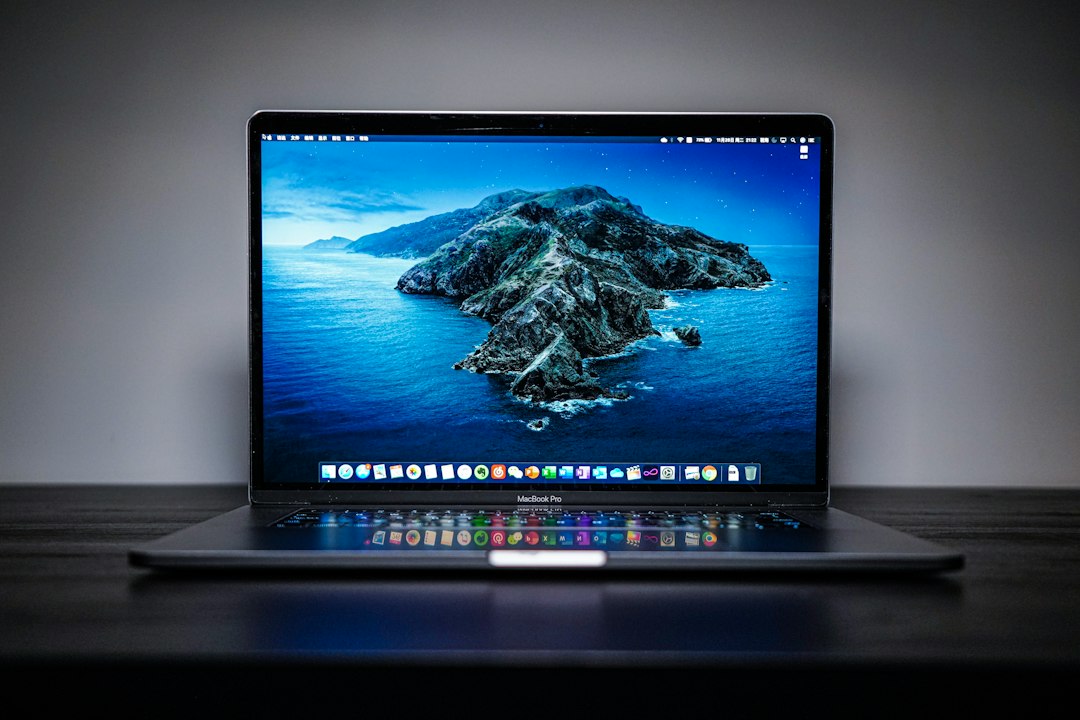
The Wi-Fi item at the top of the screen shows full bars. The network name is right there with a checkmark next to it. Every page times out, Mail spins, and Messages sits on a grey bar. Restarting fixes it about half the time, which is the worst possible outcome, because it teaches nothing about what broke.
The reason this state is confusing is that "connected" describes one step out of four, and only the first one. A Mac can finish that step perfectly and still have no route to anything. Apple's own troubleshooting page for this exact symptom lists eight things to check, and they are not in order of likelihood. Sorting them into the four stages makes the list much shorter.
The four stages behind the word "connected"
Getting from a laptop to a webpage takes four separate things to work, and the menu bar reports on only the first.
| Stage | What has to happen | What it looks like when it fails |
|---|---|---|
| Association | The Mac joins the wireless network and is authenticated | Cannot connect at all, repeated password prompts |
| Addressing | The router hands the Mac a working IP address | Full bars, nothing loads, everything times out |
| Name resolution | Domain names get turned into addresses by a DNS server | Some apps work, browsers hang on "Looking up…" |
| Route to the internet | Traffic actually leaves the building and comes back | Local devices reachable, nothing beyond them |
Full bars with no internet is almost always stage two, three or four, and the menu bar cannot see any of them. The wireless radio has done its job. Something after it has not.
Apple states the boundary plainly at the top of the page dedicated to this symptom.
To connect to the internet over Wi-Fi, your Mac must first be connected to a Wi-Fi network, and that network must allow your Mac to connect to the internet. Source: support.apple.com, read September 27, 2026
Those are two different conditions, and the second one has nothing to do with the Mac.
Addressing: the stage that restarting quietly fixes
Restarting a Mac is not a magic act. It works on this problem for one specific reason, which is worth knowing because it points at a faster fix.
When a Mac joins a network, the router assigns it an address for a fixed period, called a DHCP lease. Restarting makes the Mac ask for that address again. Apple describes the mechanism directly: if the lease expired and the address is already in use by another device, the Mac is assigned a new one. So the reboot is really an address renewal with an eight minute wait attached.
The renewal can be done on its own in about fifteen seconds. Open System Settings, click Network in the sidebar, click the network service that needs it, click Details, click TCP/IP, then click Renew DHCP Lease and click OK. The Mac User Guide notes when this is worth trying at all: in an environment where many computers use the same DHCP server, or where the network administrator has set up a short lease time.
Before that, the Network pane itself gives a reading. Each service carries a colour. Green means the service is active and connected. Yellow means it is active but not connected. Red means it has not been set up. A green Wi-Fi service with no working internet moves the problem downstream. A yellow one means the Mac never finished joining, which is a different article.
On a network using PPPoE, one field causes this symptom on its own. The PPPoE Service Name field should be empty unless the internet provider specifically requires a value in it.
Name resolution: working network, unreachable names
If addressing is fine and nothing loads, the next candidate is DNS, the service that turns a name like apple.com into an address. A Mac with a valid IP address and a broken DNS path behaves exactly like a Mac with no internet at all, because almost nothing on a modern machine connects to a bare number.
By default the router hands out the internet provider's DNS server, and every device on the network inherits it. That default is also the single point where one failure takes down everything at once, including devices that were working five minutes earlier.
macOS will sometimes say so directly. If a warning appears that the network is blocking encrypted DNS traffic, Apple's recommended sequence is short: check that software is up to date and the router's security setting is configured as recommended, restart the Mac, restart the router, then forget the Wi-Fi network and rejoin it. The warning itself is not the cause of an outage, but it is a signal that something on the path is rewriting or intercepting name lookups.
The clock, which breaks more than it should
An incorrect date is third on Apple's list for this symptom, and it looks nothing like a clock problem from the outside.
Secure connections depend on certificates that are valid between two dates. A Mac whose clock is badly wrong will reject valid certificates, and since nearly every site and service now runs over HTTPS, the result is a machine that reaches the network and refuses everything on it. The same failure blocks sign-in to iCloud, the App Store and Messages, which is why Apple's guidance on connectivity problems caused by third-party software also starts by asking whether the date, time and time zone are correct.
This matters after a battery has been fully drained, after a logic board repair, or on a machine that has been in a drawer for a year. Set the date and time correctly, then try again before changing anything else.
Software in the path: VPN clients, firewalls and profiles
Anything installed to inspect or protect network traffic sits between the Mac and the router, and when it fails it fails silently. Apple keeps a dedicated page on this because the symptom set is so wide: no internet, no Wi-Fi, backups that will not run, iMessage and FaceTime that will not activate, App Store connections that hang.
Finding the culprit is harder than it sounds, because the software is not always labelled as a VPN. Apple suggests looking for apps whose names contain words like Anti, Alarm, Firewall, Mechanic, Malware, Protection, Security, Shield, Spy, Trust, Virus or VPN, across VPN clients, firewalls, antivirus tools, parental control apps and content blockers.
Settings can also be left behind after the app that created them is gone. Searching System Settings for the words VPN, profile, firewall and filter surfaces most of them, and login items are worth checking in the same pass, since a helper that starts at login can reapply a filter the moment it is removed.
There is one Mac-specific recovery step that is easy to miss. On iPhone and iPad, network settings can be reset outright. On a Mac, the equivalent is switching to a new network location in Network settings, which starts the network configuration from a clean slate without touching anything else.
The two diagnostic tools already installed
macOS ships two tools for this, both reached from the Wi-Fi item, and most people never open either.
The first is Wi-Fi Recommendations. Clicking Wi-Fi in Control Center or the menu bar and looking for a menu item with that name takes two seconds. If the item is there, macOS has already detected something and has a recommendation waiting. If it is not there, nothing was detected. The feature is not available for personal hotspots or for networks using enterprise security protocols such as WPA Enterprise and WPA2 Enterprise, so its absence on an office network means nothing.
The second is Wireless Diagnostics, which is the one that actually analyses the connection to the internet rather than the radio link. Quit open apps, join the problem network, then hold the Option key while clicking Wi-Fi in Control Center or the menu bar and choose Open Wireless Diagnostics. It produces a list of detected issues with Info buttons next to each one.
Note: Wireless Diagnostics doesn't change your network settings. Source: support.apple.com, read September 27, 2026
That note matters, because the tool looks alarming and is in fact read only. It also writes a compressed report into /var/tmp, with a filename that starts with WirelessDiagnostics and ends in .tar.gz, which is the file to attach when the conversation moves to an internet provider or an IT desk.
Both routes start with clicking the Wi-Fi item, and Apple's instructions name two places to find it: Control Center or the menu bar. That wording is deliberate. The Wi-Fi status item is not guaranteed to be at the top of the screen, and which status items appear there is set in System Settings under Menu Bar. On a machine where the menu bar has filled up with resident app icons, the system items nearest the clock are the ones that get pushed off, and the Option-click route disappears with them. Deciding which icons deserve that space is a separate job from fixing the network, and the features page covers what a menu bar manager for macOS can move out of the way without losing the ability to reach it.
Router settings that produce this exact symptom
When the Mac checks out at every stage, the network is the remaining suspect, and three router settings cause full bars with no internet more often than the rest.
Two DHCP servers on one network. A network should have exactly one device handing out addresses. When DHCP is enabled on both a cable modem and a router, Apple notes that the resulting address conflicts might prevent some devices from connecting to the internet or using network resources. Some devices, not all, which is why one laptop fails while a phone in the same room is fine.
An exhausted address pool. Routers can assign only a limited number of addresses. Once that number is used up, new devices get nothing. Apple's recommended lease time is 8 hours for a home or office network and 1 hour for hotspots or guest networks, precisely so that old addresses come back into circulation quickly. A long lease on a network with many visiting devices produces intermittent, device-specific outages that look random.
Double NAT. Network address translation should be enabled on the router alone. With it turned on in both the modem and the router, Apple warns that devices might lose access to certain resources on the network or internet, which is a partial failure rather than a total one.
Two more settings are worth checking at the same time, because they cause unreliable joining rather than outright failure. All bands should advertise the same network name, since different names per band mean devices might not connect reliably to the network or to all available bands. Hidden networks should be disabled, because hiding the name neither conceals the network nor secures it.
One setting sits on the Mac rather than the router and is easy to overlook. Location Services needs to be on for system networking, because the permitted Wi-Fi channels and signal strengths are set by regulation per country. It lives under Privacy and Security, then Location Services, then the Details button next to System Services, where the item is called Networking and wireless.
What to change first
Renew the DHCP lease before restarting, since it is the same fix in fifteen seconds instead of several minutes. If that changes nothing, check the date and time, then Option-click Wi-Fi and run Wireless Diagnostics, which is read only and names what it finds. If the Option-click route is missing because the Wi-Fi item has been squeezed out of the menu bar by resident apps, that is worth fixing on its own, and Koffret exists for deciding which icons keep their place up there.
Frequently asked questions
Why does my Mac say it is connected to WiFi but there is no internet?
Joining a Wi-Fi network and reaching the internet are two separate things, and the menu bar reports only the first. The most common causes after a successful join are an expired or conflicting IP address, a broken DNS path, an incorrect clock that invalidates secure connections, VPN or security software filtering traffic, and a router that is not passing traffic upstream.
Does restarting a Mac actually fix this, or is it superstition?
It genuinely helps, for one reason: restarting makes the Mac request its network address again. Apple notes that if the lease expired and the address is already in use by another device, the Mac is assigned a new one. Renewing the DHCP lease in System Settings under Network, then Details, then TCP/IP does the same thing without the reboot.
How do I run Wireless Diagnostics on a Mac?
Quit open apps, join the network that is failing, then hold the Option key while clicking Wi-Fi in Control Center or the menu bar and choose Open Wireless Diagnostics. It analyses the connection to the internet and lists what it finds. It does not change any network settings, and it saves a report in /var/tmp whose name starts with WirelessDiagnostics.
Could a VPN cause a Mac to show WiFi with no internet?
Yes, and so can firewalls, antivirus tools, parental control apps and content blockers, along with configuration profiles left behind after the app itself was removed. Searching System Settings for VPN, profile, firewall and filter finds most of them. Checking login items in the same pass is worth doing, since a background helper can reapply a filter after it is deleted.
Why does one device work on the network while my Mac does not?
That pattern points at addressing rather than at the internet connection. Two devices handing out addresses on the same network, or a router whose pool of addresses is exhausted, affect some devices and not others. Apple recommends a DHCP lease time of 8 hours for home and office networks and 1 hour for hotspots and guest networks so that unused addresses return to circulation.