macOS menu bar icons not clickable: how to get them back
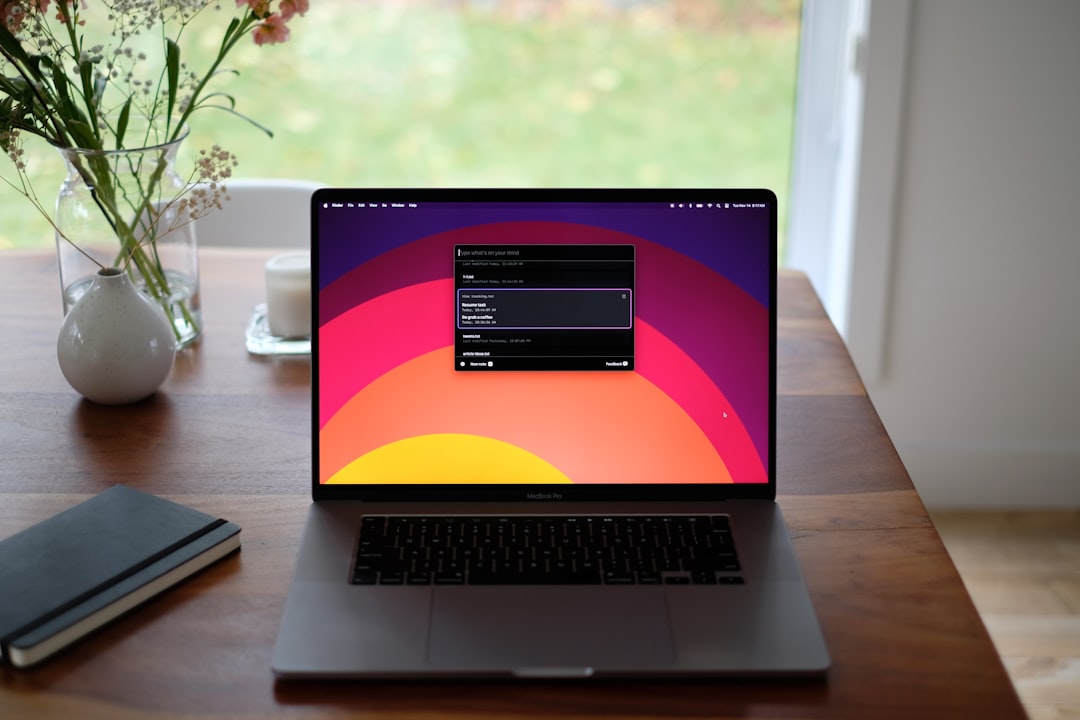
An app is running. Its menu bar icon was there yesterday. Today the pointer passes over the same spot and nothing highlights, nothing opens, and there is no icon to aim at. Or the icon is visible, the click registers, and no menu appears. These two situations look identical from the keyboard and have almost nothing in common underneath. The first is a layout problem, and macOS is doing exactly what it was designed to do. The second is a process problem. Sorting out which one is happening takes about a minute and decides everything you do next.
What "not clickable" usually means
Most reports of unclickable menu bar icons are not about clicking at all. The icon has no position on screen, so there is nothing to click. macOS lays out menu bar extras from the right edge inward, placing the clock and Control Center first and working leftward through everything else. The frontmost application's own menus grow from the left edge in the opposite direction. Between them sits a finite strip of pixels, and when the two sides meet, the extras that no longer fit are simply not drawn.
That is the part people miss. The item is not minimised, greyed out, or moved somewhere else. It is dropped from the layout for as long as the space is short. Switch to an application with a narrow menu list, such as Finder or a text editor, and the missing icons reappear. Switch to something with a long menu list, such as a video editor, an office suite, or a development environment, and they vanish again. If the icons come and go depending on which window is in front, the cause is width, and no amount of restarting the app will change it.
The behaviour is not a bug and there is no preference to turn it off. Menu titles are drawn at full length, the clock and Control Center are reserved, and the extras absorb the shortfall. On a Mac with a dozen background utilities running, the shortfall arrives quickly.
How macOS decides which icons get a place
The order matters because it decides who gets dropped first. Reading right to left, the clock and Control Center sit at the far right and are never displaced. Next come the Control Center modules you have chosen to show, such as Wi-Fi, Bluetooth, Sound, Battery, Focus and Screen Mirroring. Then come third-party items, in whatever order they have been arranged.
You can change that order. Hold Command and drag a menu bar item sideways, and it moves. Items you drag furthest right survive the squeeze; items pushed to the left of the strip are the first to disappear when an application with wide menus takes over. That single gesture solves a surprising share of cases, because the icons people actually need in a hurry are often sitting at the far left by accident, simply because those apps launched last.
Command-drag also removes some items. System-supplied extras can be dragged clear of the menu bar to remove them outright. Third-party icons usually cannot be removed this way, since the app that owns them decides whether they appear at all. For anything supplied by macOS itself, the reliable place to change it is System Settings, under Control Center, where each module has a setting for whether it is shown in the menu bar.
Keep in mind that the arrangement is per display setup. Connect a different monitor, or dock and undock a laptop, and the available width changes underneath the same set of icons. An icon that was reachable at the desk can be gone on the train.
The notch takes width away from the same pool
On MacBook Pro models from 2021 onward and MacBook Air models from 2022 onward, the camera housing occupies the centre of the menu bar. macOS does not draw menu bar items underneath it. The space to the left of the notch is used by application menus, the space to the right by extras, and the notch itself is dead width taken out of the middle of an already tight strip.
The practical effect is that a notched laptop reaches the drop-out point sooner than an older Mac with the same screen size and the same set of apps. It also produces a distinctive symptom. Items do not gradually shrink or overlap. They stop at the notch boundary and the ones that would have landed there are gone. Users often describe this as icons hiding behind the notch, which is close enough as a description even though nothing is actually being drawn under it.
Adding an external display changes the sum but not the rule. The menu bar exists on each display, and on the built-in screen the notch keeps taking its share. Moving a window to the external monitor does not move the extras with it, because extras belong to the display the menu bar is drawn on, not to the app in front.
One further quirk belongs here. Some applications, when put into full screen on a notched laptop, are scaled to fit below the camera housing rather than around it. That setting lives in the Finder's information window for the application and only affects full screen behaviour, so it will not bring back an icon that is missing on the desktop. It is mentioned because people find it while searching for the notch and change it hoping for a different result.
Work out which cause applies before changing settings
Four checks, in order, will identify almost every case.
First, click on the desktop so Finder is frontmost, then look at the menu bar again. If the missing icons return, the cause is width and the next sections apply.
Second, open System Settings and look at Control Center. Every module set to show in the menu bar is occupying space whether or not you use it. Counting them is usually a surprise.
Third, check whether the app that owns the icon is actually running. Open the Activity Monitor and search for its name, or open the app from the Applications folder and see whether an icon appears. Some apps quit their background helper without quitting the main process, and some are set to run without a menu bar icon at all.
Fourth, if the icon is present and the click does nothing, the problem is not layout. That is covered further down.
A fifth check is worth adding on a laptop that is used in more than one place. Repeat the first check while docked and again while undocked. If the icons are present in one arrangement and absent in the other, the set of installed apps is fine and only the width has changed, which points at the display configuration rather than at any single application.
Doing these in order matters because the fixes conflict. Removing Control Center modules to solve a problem that turns out to be a stalled helper process wastes an afternoon and leaves the Mac configured worse than before.
Cut the number of items, starting with the ones you did not add
The fastest reduction is usually in Control Center rather than in third-party apps. Battery percentage, Screen Mirroring, Now Playing, Focus, Stage Manager and Spotlight all take width, and several of them are shown by default. Each one that goes gives its width back to something you chose to install.
After that, look at background utilities that expose status you rarely act on. Cloud storage clients, backup tools, VPN clients and update checkers tend to publish an icon because they have nowhere else to report from, not because you need to see it continuously. Many of them have a preference to run without a menu bar icon, and the ones that do not can be managed by a separate tool.
That is where a menu bar manager comes in. Rather than removing icons, it moves the ones you rarely need into a hidden section behind a divider, leaving a short row of the ones you actually use. The better implementations let you open a hidden item's menu without expanding the whole bar first, which matters because expanding and re-collapsing a crowded bar is exactly the interaction people were trying to escape. The range of behaviours available is worth reading through before choosing, and Features sets out what this category of tool can and cannot control.
When the icon is visible but the click does nothing
If the icon is drawn and the click produces no menu, stop looking at layout. Two causes account for most of these.
The first is a stalled helper process. Many menu bar items are drawn by a small background process rather than by the main application, and when that process hangs, the icon keeps its last drawn state and swallows clicks. Quitting and relaunching the owning app clears it. For items supplied by macOS, restarting the two processes that draw them has the same effect: in Terminal, killall SystemUIServer and killall ControlCenter both restart immediately and log you out of nothing.
The second is a permissions problem, and it appears specifically after installing or updating a tool that rearranges the menu bar. Anything that moves or hides another app's icon needs Accessibility permission, granted in System Settings under Privacy and Security. An app update can leave that permission listed but inactive. Removing the entry and adding it back, then relaunching the app, restores it. Symptoms of a stale permission are distinctive: the tool's own icon works normally while everything it manages ignores clicks.
If neither applies, log out and back in before restarting the whole machine. The menu bar is rebuilt at login, which is enough for most stuck states. Apple's own troubleshooting material for the desktop and menu bar is collected at Apple Support, and it is worth checking whether the behaviour changed in a recent macOS release before assuming a specific app is at fault.
Give the bar more width instead of fewer icons
There is a third option that gets overlooked. The menu bar's capacity is measured in points, not physical pixels, so a scaled resolution that reports more points gives every item more room. In System Settings, under Displays, choosing a setting toward More Space increases the logical width of the screen and therefore the number of items the bar can hold. Text gets smaller across the whole system, which is the trade, and on a 13 inch laptop that trade is often not worth making.
| Approach | What it costs | Best when |
|---|---|---|
| Remove Control Center modules | Lose one-click access to those controls | Several defaults are shown that you never use |
| Turn off icons in each app's own settings | Lose the status the icon reported | The app has a real window you use anyway |
| Increase screen resolution | Everything on screen gets smaller | Working on a large external display |
| Use a menu bar manager | Adds one item, and one more thing to configure | You need the icons, just not all at once |
| Reorder with Command-drag | Nothing, but capacity is unchanged | Only two or three items are being dropped |
None of these is strictly better than the others, and the sensible answer is usually a combination: remove what you never look at, hide what you look at occasionally, keep what you click daily. If you are weighing the tools in the last row against each other, How it compares lists what each one charges and which platform versions it supports, with the date the prices were checked.
What to change first
Start with the Finder test. If the icons come back when Finder is frontmost, the problem is width and nothing is broken, so spend the next five minutes in Control Center removing modules you never press. If they do not come back, restart the owning app and check Accessibility permission before changing anything else. Once you know which of the two you are dealing with, a tool such as Koffret is worth setting up only for the first case, where the icons are needed and the room is not there.
Frequently asked questions
Why do my menu bar icons disappear only in certain apps?
Applications with long menu titles use more of the menu bar, and macOS gives that space priority over menu bar extras. Video editors, office suites and development tools are the usual offenders. The icons return when you switch to an app with a shorter menu list, which confirms the cause is available width rather than a crashed process.
Can I stop macOS from hiding menu bar items when space runs out?
There is no setting to change that behaviour. The layout rule is fixed. The available responses are to reduce the number of items competing for space, to increase the screen's logical width with a scaled resolution, or to install a menu bar manager that keeps the rarely used icons in a hidden section so they never compete for the visible strip.
My menu bar icon is visible but clicking it does nothing. What now?
That is a process problem rather than a layout one. Quit and relaunch the app that owns the icon. For items supplied by macOS, running killall SystemUIServer and killall ControlCenter in Terminal rebuilds them straight away. If a tool that manages other icons is involved, remove and re-add its Accessibility permission in System Settings and relaunch it.
Does the notch on a MacBook cause this?
It contributes to it. macOS does not draw menu bar items under the camera housing, so that width is unavailable on MacBook Pro models from 2021 onward and MacBook Air models from 2022 onward. The result is that a notched laptop starts dropping icons with fewer apps running than an older Mac of the same screen size.